Showing posts with label Leading with Technology. Show all posts

Tuesday, May 3, 2016

#InLove with Adobe Education Exchange


Once again, I have to give a shout out to the FREE professional learning opportunities available on the Adobe Education Exchange, or Adobe EdEx.

Here's my final assignment from the Publishing class I just completed- an interactive document that explains step-by-step how to create a QR Scavenger Hunt for your students: http://christibangsund.blogspot.com/2016/04/qr-code-scavenger-hunt-yes-please.html.

I am definitely 'self-taught' when it comes to programs and software.  I knew a little about InDesign and had the 'basics' down (or what I thought were the basics), but wow.  5 weeks and 5 assignments later I can create way better documents, even interactive documents, with the InDesign (as seen above)!

From a previous post about Adobe EdEx, here's why I (still) love it:
1.  It's free.

2.  It's totally online and done in your own time and space.  I literally did all 5 weeks of coursework in 1 week.

3.  It's free.

4.  Collaborative environment with Adobe professionals as the teachers- Each week the teachers go over content and give you an assignment to create and post for other participants to see and give feedback. 

5.  Classroom Applications galore (your imagination is the only limit!)- You also get to see and give feedback to other's work, which, can in turn, inspire a more ideas!

6.  It's free.

7.  The cool badge you get after completing the course. (cha-ching!)


Visit the Adobe Education Exchange at http://edex.adobe.com/professional-development/courses to check out what is coming up!  Try one class, try several.  You will be glad you did!

Wednesday, April 6, 2016

I'm in love with these 3 Apps/Extensions- as a Teacher and a Mom!

Here are 3 new apps/extensions that I am in LOVE with!  I tutor a group of 2nd graders each morning and am DEFINITELY using these to augment the learning (and infuse technology...it's a win win!)

Epic! Books Online
An online database of books, free for teachers.  Books organized by category; age range, average reading time and AR Level information listed with each book.

Available for Chromebooks and iPads (click image below to download or add to Chrome browser)


Green Screen by Do Ink
Students can create green screen pictures using an iPad or iPhone. Great tool to augment students writing and reading in your classroom!

Not available for Chromebooks. $2.99 in the App Store
(click image to download from App Store)


Google Tone
Does it take forever for students to type in a web address?  Send it to them wirelessly with Google Tone.  By adding Google Tone to your Chrome web browser, you can ‘send’ a website to each student’s device by simply pressing the Google Tone button. See how it works with this 26 second video.

Available in the Chrome Web Store:
(click image to download from Chrome Web Store)

Monday, March 21, 2016

Up Your Skills with Adobe Education Exchange


Looking to up your tech skills?  Adobe has fantastic online professional development- for educators- on their products.

Here's why I love it (after taking just one course so far...):
1.  It's free.
2.  It's totally online and done in your own time and space.
3.  It's free.
4.  Collaborative environment with Adobe professionals as the teachers
5.  Classroom Applications galore (your imagination is the only limit!)
6.  It's free.
7.  The cool badge you get after completing the course.

I've used Adobe products for quite some time but am totally self-taught.  I was looking for something to spur my creativity and found Adobe's online Collaborative Courses one day.

The first course I took was on Adobe Muse and I am currently taking a Publishing course using Adobe's InDesign.  Both courses are about 4 weeks long.  You can 'attend' the live class each week OR (as I do) go through the week's class on your own time.  Each week the teachers go over content and give you an assignment to create and post for other participants to see and give feedback.  You also get to see and give feedback to other's work, which, can in turn, inspire a more ideas!

Here's my product from the first class- totally NOT done- but a work in progress as our district moves to create a technology continuum that will 'live' online.  This is a website created in Adobe Muse- web authoring software.  You can see how I've organized our work here: http://cusdedtech.businesscatalyst.com.

Check out the upcoming courses:

  • Train the Trainer: Creative Cloud
  • Animation
  • App Design
  • Digital Storytelling with Adobe Mobile and Web Apps
Visit the Adobe Education Exchange at http://edex.adobe.com/professional-development/courses for more information.

Friday, March 4, 2016

GoFormative.com

Goformative.com is an AMAZING resource for any teacher with students in their classrooms.  But...what about educational leaders???  I think so!  After a brief couple of minutes on the site I was easily able to make an assignment with many different question types.  You can create multiple choice, true/false, and short answer questions, but also show your work questions where a canvas appears as a work space for their answers.  You can add images, YouTube videos, and extra text boxes.  I haven't tried it (yet) but you can also upload your previous quizzes and make hem interactive.  But...the piece that toally intrigues me is the way you (the teacher) sees the feedback.  Each question will show mini "screenshots" of each student's answer.  At a quick glance you'll be able to see who's understanding and who needs more instruction.

My perspective is through professional learning sessions so I will most definitely be working this into my next pd...what a great way to check for understanding with teachers, but also a way to get personal feedback on topics in a quick way!

Friday, February 12, 2016

Gamify Your PD: Jeopardy

You know what can make your pd session fun?  A game of Jeopardy!  I've always loved watching this game on TV, brought it into my classroom as a teacher, and now am bringing it into pd as a TOSA.

Here's an example of my latest Jeopardy game- designed for each grade level in my school district. This game is made in google slides.  The amounts on the gameboard amounts are linked to the question slides.  To get from the question slide back to the gameboard, click on the girl.  Check it out here...click 'present' to get the full effect!


Here are the rules I play by with students AND adults...which is different from the Jeopardy you see on TV. These are the rules I used for district-wide grade level meetings.
  1. You will work with a team of teachers from other sites.
  2. Each group will have the opportunity to choose a category and question amount from the board.
  3. We (facilitators) will read the question and give every team time to discuss the answer(s).
  4. Every team will have the opportunity to share their answer(s) with the entire group.
  5. Every team will have the opportunity to earn points for each question.

Talk about collaboration!  You can take a look at how the questions were formatted in the example (above) to encourage (and really, force) collaboration!  This game was a BIG HIT at our last grade level meetings- it totally gamified collaboration!!!!

So...are you ready to make a Jeopardy game for your next pd session or staff meeting?
Here you go...a copy of the Jeopardy game for you to edit and use when you click the link it will automatically prompt you to make a copy): https://docs.google.com/presentation/d/1DIkeXeFi2BULqRmYzfPlngldOXqehLuvcdxn5hHtAmY/copy


To edit:
1. Add your title to the title page.
2. Add questions to the question slides.  Don't rearrange slides as that will mess up the links on the gameboard page.
3.  When you're ready to play, explain the rules (above), click 'Present' and have some fun!

Lead with Technology...Enjoy!


Thursday, February 4, 2016

ShareD YouTube Playlists- Create a playlist with multiple collaborators

One shared video on Facebook got me thinking...my sister-in-law shared this super fun video today, mostly (I think) because the guy with the glasses has a hilarious dinosaur dance move: https://youtu.be/Imhi98dHa5w?list=PLLRi5Ghj26dCHEmCAj4-7P8rK6q620OMq

That video led me to think about how perfect and fun these videos would be for brain breaks in the classroom...

which led to making a YouTube playlist so I could keep them in one spot...

which got me thinking...why keep them to myself?  What if my teaching partner wants to add a video she/he found...

...which led me to wonder about shared YouTube playlists where different people can add to the same list!!!

So...how awesome would it be to lead through technology and START a shared playlist for:

  • grade level teams (Brain Breaks, videos for science content, etc.)
  • Entire sites (motivating/inspiring videos, Kid President snippets for morning announcements)
  • An entire District (Teaching strategies, district-wide grade level lists- talk about collaboration across sites!!!)
Here's how you do it!  (It's so easy...)

1. Sign in to YouTube.
2. On the left hand side, click Library.


3. In the upper left hand corner click 'New playlist.'

4.  Give your playlist a title and add videos by clicking 'Add videos.'

5.  Once you have your videos, select 'Playlist settings.'

6.  Now choose the 'Collaborate' tab.  Turn on collaboration by clicking the button so the blue check mark appears.  A button will appear that says 'Get Link.'  Click for the link; copy and paste so you can invite collaborators!!!

Now you have a shared playlist that anyone can add to, as long as they have the link!!!  You are still the 'owner' so you can monitor additions as needed.

Enjoy!

Wednesday, January 27, 2016

Gamify Your Staff Meeting or PD: Kahoot

Image from https://getkahoot.com/tutorials/Kahoot_Tutorials.pdf 
Want to add a little gaming to a staff meeting or pd session?  Kahoot is a GREAT tool to spice it up!  Kahoot! is easy to use and a fun way to collect feedback!  And that's not it...what a great way to model technology use to collect information and/or feedback that can immediately be used the next day in a classroom.

Kahoot! can be used as a classroom formative assessment tool to:
  • begin a lesson- gathering prior knowledge or building background knowledge on a topic
  • gauge student understanding in the middle of a lesson
  • assess knowledge, drive your instruction for the next day or week, at the end of a lesson as an 'exit slip'
Materials Needed: To use Kahoot! everyone needs a device that connects to the internet, i.e. smartphone, iPad, Chromebook, laptop... they'll all work.

To set up a Kahoot! quiz, discussion, or poll, you'll first need to make a free account.  Then you can build your own game by following directions here.  These directions are easy to follow and walk through creating a quiz step-by-step.

When you're ready to play, log in to kahoot.com on a device connected to a projector (preferably), choose your game, and select 'play.'


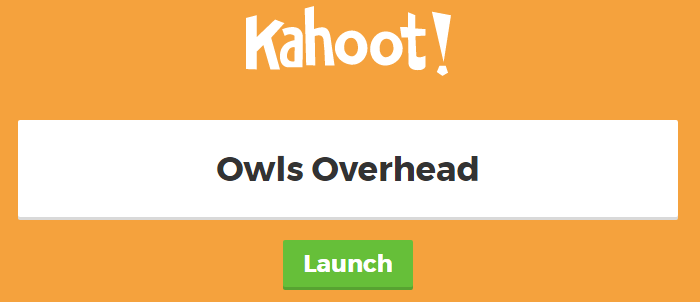
Select 'Launch...'


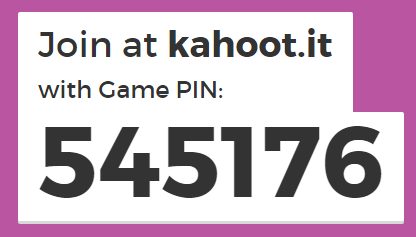
Players need go to kahoot.it and enter the unique code that was generated for your quiz (it'll appear after you click 'Launch').  They'll also be prompted to enter a nickname to identify themselves.


Your device (connected to the projector) will display the questions and answer choices.
Players devices will ONLY show symbols for answer choices.
Image from https://lh3.ggpht.com/8MB3BaV2DmsB0OgTNW3dBr7moEdgQgyd8WPcyTLfFXCEhm4XiHA5UGz8bQFqapA2iNSu=h900
Results will appear as soon as everyone has responded.  Players play for points...the quicker they answer the more points they get!

Have fun with this!

Tuesday, January 26, 2016

Kid Snippets: Math Class

Kid Snippets are some of the funniest videos on YouTube.  Here is my ABSOLUTE favorite- Math Class.  In Chico Unified (my school district) we have a group of teachers that facilitate district-wide grade level meetings during the year.  We used this video to open our very first meeting of the year and it was a huge hit...every teacher can relate to this situation.  Needless to say we haven't been able to find one to top this video yet, but we keep looking...

This video is perfect for:

  • Opening a staff meeting after a rough day
  • Instant icebreaker at a Professional Development session
  • "On a whim" sharing (Hey!  Check out this funny video!)
  • When you're by yourself and are looking for a laugh!

Monday, January 25, 2016

Apps You Need: Sock Puppets (Apple only)


Socks Puppets is a MUST have app if you have an Apple device for use in your classroom.  The app uses a sock puppet to record student voices (up to 30 seconds for the free version).  Students can also choose the background and any props for their scene.  The free version allows you to save and share the videos to a variety of sites.

Common Core Connections
TK:
  • Talks in complete sentences
  • Uses descriptive language

K:
  • SL.6- Speak audibly and express thoughts, feelings, and ideas clearly
  • L.1- Demonstrate command of English grammar and conventions when speaking

1st-3rd:

  • SL.6- Produce complete sentences when appropriate to task and situation
  • L.1- Demonstrate command of English grammar and conventions when speaking

4th-5th:

  • SL.6- Differentiate between contexts that call for formal English (e.g., presenting ideas) and situations where informal discourse is appropriate (e.g., small-group discussion); use formal English when appropriate to task and situation.
  • L.1- Demonstrate command of English grammar and conventions when speaking


However...this app can be used for a multitude of standards! Check it out:
  • Fluency: students practice reading a short passage for accuracy, rate, and prosody and then record as a sock puppet
  • Comprehension: Summary- have students record a written summary of a book/piece of text. Summaries include the most important points so students will have to think critically to write an effective summary that will have them talk for 30 seconds or less.
  • Mathematical Thinking: create a scene with 2 puppets and have puppet #1 (teacher voice) ask how a problem was solved and puppet #2 (student voice) explain how they solved a problem.
Finally- share the student videos on your website or email it to parents. The app alters the voice and there won't be any identifying student information in the video. How awesome would it be (as a parent) to receive a video of your student's work in an email? (I would love it!)


@prestoplans 30 Day Happy Teacher Challenge

Need a challenge for yourself? Try the 30 day Happy Teacher challenge from ! Brilliant! A little bit everyday will go a long way!

Sunday, January 24, 2016

Tech Integration

Today I found a fantastic article that really sums up my thoughts about technology in education.  Read the article here:  https://www.iste.org/explore/articleDetail?articleid=229&category=ISTE-Connects-blog&article=&utm_source=Facebook&utm_medium=Social&utm_campaign=ProjectReimaginED.

"There’s a wide gulf between technology use in the classroom and actual tech integration."

Yes!  How do we (teachers) use technology to transform learning for our students instead of using technology to substitute tasks that we currently have students complete?  There is certainly a place for technology as a substitute- practicing math facts, sight words, number recognition, etc.  But true integration goes beyond that and allows students to use technologies to enhance and transform their learning.  And when student learning is transformed, teaching has been too!!